
Concepts
This page details the foundational concepts of FreeCAD, document snapshots, and version control for those who have never worked with it before.
Understanding the concepts laid out here will help you understand how to use the History Workbench effectively. Version control is at the heart of the workbench, and this workbench has intentionally replaces developer-centered version-control terminology with CAD-focused terms to make it both approachable and intuitive. This workbench uses a program called git under the hood for version control, so the analogous git terminilogy is provided next to each heading for reference.
Note: if you are already knowledgeable in git, just review git term next to each heading to familiarize yourself with the terminology mapping, and you’ll be ready to rock and roll.
FreeCAD Terminology
Section titled “FreeCAD Terminology”FreeCAD stores files in the .FCStd format, and represents a single Document. From the workbench’s perspective, a FreeCAD “Document” and “file” mean the same thing.
FreeCAD builds up your document using Objects displayed in a tree. Different workbenches create objects their own way, such as Sketch objects created in the Sketcher workbench, and part design feature objects created in the Part Design workbench.
Most objects have multiple Properties associated with them, and represent values such as dimensions, placements, quantities, and more. Many properties have the ability to be set using Expressions, which are equations to dynamically determine values at runtime.
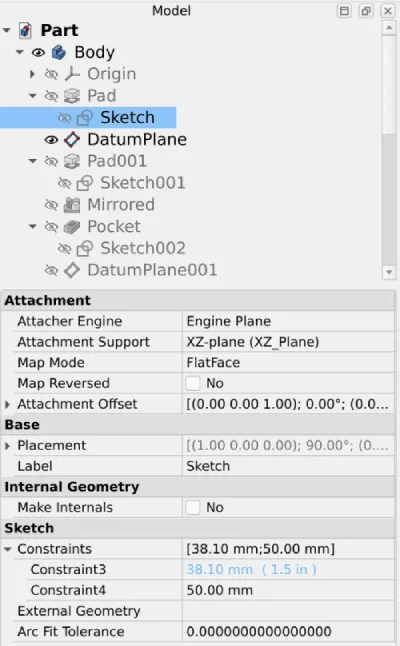
In the above image, the top level Part is the document; the Body is a PartDesign::Body object created in the Part Design (PD) workbench; Pad is a PartDesign::Pad object, and Sketch is a Sketcher::SketchObject created in the Sketcher workbench. “Sketch” is currently selected, the properties associated with that object are displayed below. You can see from the light blue text next to Constraint3 that it is defined using an expression, 1.5in.
Snapshots
Section titled “Snapshots”A snapshot in the History Workbench is a text file in yaml format that stores the tree representation of a FreeCAD document. It contains the full hierarchy of the object tree, as well as many, though not all, of the properties for each object.
It’s called a snapshot because it represents your FreeCAD document as it was at a certain point in time. It allows this workbench to quickly display the document tree and generate comparisons with older versions of the same tree, without having to open the FreeCAD documents themselves.
When you mark documents as reviewed and save iterations (discussed later), the snapshot file is stored in your project’s directory for future retrieval.
Project (repository)
Section titled “Project (repository)”A Project is a folder on your computer containing your FreeCAD project files, that has been set up to track history. You will know history is being tracked by the presence of a .git folder in the root directory. Do NOT delete or modify the contents of this directory in any way.
All FreeCAD files in your project directory can have their history tracked, including files in sub-directories.
History can only tracked on the folder level, so it is recommended to separate unrelated FreeCAD files into their own folders and initialize projects in each independently.
Iterations (commits)
Section titled “Iterations (commits)”An Iteration is a savepoint for your whole project at a particular point in time. All of your FreeCAD files and their associated snapshots are saved as a separate copy on your file system. This allows you to view, compare, and even restore the files at a later date.
An iteration can be created at any time for any reason, but usually it is used as an indication that something meaningful has changed. Perhaps a milestone was reached with a new feature that was added, or a problem has been fixed.
Once an iteration is saved, it cannot be altered. This may sound scary, but it’s intentionally designed to make the project history reliably accurate. It’s common to create new iterations to fix mistakes made in previous iterations, keeping the history intact. It provides peace-of-mind, knowing that you can always restore document(s) as they existed in the past.
(Okay, it IS technically possible to revise history using other git tools, but doing so creates the possibility of introducing mistakes and erasing history. This workbench does not provide the means, and is generally discouraged.)
Iterations are stored in your project directory in the special .git folder.
Current Files Area (working tree)
Section titled “Current Files Area (working tree)”The Current Files Area represents the current files on your file system. These are the “active” documents you are used to working with. When you open a FreeCAD file in your project, that file is considered to be in your Current Files Area. That’s it!
Reviewed Area (staging)
Section titled “Reviewed Area (staging)”The Reviewed Area represents FreeCAD documents that you have reviewed and “saved” as a potential candidate to be stored permanently in the next iteration.
When a FreeCAD document is marked as Reviewed, a copy of the document is saved and stored in the Reviewed area.
“What’s the point of that? I can just save an iteration whenever I want!” you may ask. The idea behind the Reviewed area is that it’s used as an intentional, temporary “save” for something that you believe is a good change (e.g. a good savepoint.) From that point forward, when you continue making model changes, the changes displayed in the Current Files area are compared to the documents in the Reviewed area, if they exist (and if they don’t, they’re compared to the latest Iteration.) This allows you to review changes incrementally, rather than everything at once when you’re ready to save an iteration. For all but the smallest changes, it’s a huge time saver.
Additionally, if you make a modeling mistake, you can restore the file as it was when you last reviewed it. You will be thankful for the peace of mind this provides!
TODO
The Tutorials sections has a more in-depth guide on these above concepts.